Molongo Google Slides Template: Design Presentations That Captivate
There's a particular kind of frustration that sets in when you're staring at a blank presentation deck at 11 PM, knowing you need to pitch a client tomorrow morning or present quarterly results to stakeholders. You open Google Slides, scroll through the same tired built-in templates, and realize nothing quite fits your brand. This is exactly the scenario where a thoughtfully designed template system like the Molongo Google Slide Template shifts from being a "nice to have" to an absolute necessity for anyone who regularly communicates ideas visually.
Why a Template System Beats a Single Template Every Time
Most presentation templates you'll find online give you one color scheme and maybe 20 slides if you're lucky. Molongo takes a fundamentally different approach with 150+ total slides distributed across five premade color variations, with 30 slides dedicated to each template. That's not just a design choice—it's a practical one. If you're a brand consultant juggling three clients with different color palettes, or a small business owner who wants to keep internal and external presentations visually distinct, having five ready-to-go color schemes means you're not spending your Saturday afternoon manually recoloring every element on every slide.
The five color variations included in the package cover a solid range of moods and industries. Whether you're presenting a creative portfolio to a design agency, pitching a fintech startup to investors, or walking your team through a marketing strategy, there's a color story that already aligns with the tone you need. Each variation maintains the same structural integrity, so switching between them never feels like compromising on layout quality.
Handcrafted Infographics and Visual Storytelling
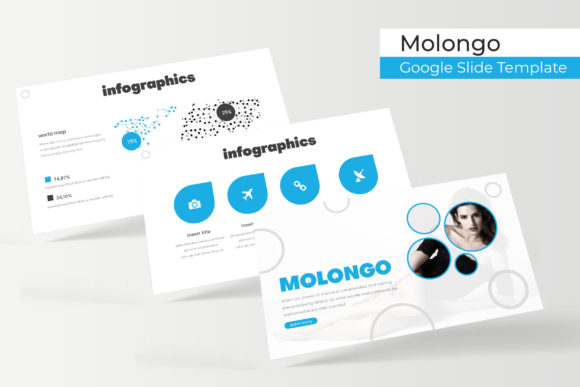
Let's talk about what actually makes a presentation memorable, because it's rarely the bullet points. The handcrafted infographics built into the Molongo Google Slide Template are where this package genuinely earns its place in your design toolkit. We've all seen those generic chart templates that feel like afterthoughts—the ones where the icons don't quite match, the spacing is off, and you end up spending more time fixing them than building from scratch.
These infographics were designed with real data storytelling in mind. Process flows, comparison charts, timeline layouts, and statistical breakdowns are all structured so that your actual content slots in naturally without requiring a design degree. For marketers presenting campaign performance, consultants illustrating workflow improvements, or educators breaking down complex topics, these visual elements transform dense information into something your audience can actually absorb and remember.
The section break slides deserve a mention here too. In longer presentations, those transition moments between topics are where you either maintain momentum or lose your audience entirely. Having dedicated section break slides that are visually cohesive with the rest of your deck keeps that rhythm consistent throughout your entire presentation.
Portfolio and Gallery Slides That Actually Showcase Your Work
If you're a photographer, designer, architect, or any creative professional who needs to present work samples, you know the struggle of trying to make images look intentional rather than just "pasted in." The gallery and portfolio slides in this template system use picture placeholders with drag-and-drop functionality, which means your images automatically conform to the designed layout. No more awkward cropping, no more manually resizing photos to fit a frame, no more pixelated images because you stretched something beyond its intended dimensions.
This is particularly valuable for agencies and freelancers who present work regularly. Imagine walking into a client meeting with a portfolio deck that looks like it was custom-designed for that specific presentation, when in reality you simply swapped out images and adjusted text in under an hour. That's the kind of efficiency that directly impacts your bottom line, because time spent wrestling with slide layouts is time not spent on billable work.
The pixel-perfect illustrations throughout the template add another layer of visual polish. These aren't generic stock illustrations that everyone and their competitor has already used. They're purpose-built to complement the overall design language, giving your presentations a cohesive, professional appearance that communicates competence before you've even said a word.
Master Slides and the Power of Editable Graphics
One of the most overlooked features in presentation design is the master slide architecture, and it's where the Molongo template truly shines for anyone who values long-term usability. Every element in this template is based on master slides, which means making global changes—updating a font, adjusting a color accent, modifying a layout pattern—propagates across your entire deck automatically. For brand managers maintaining consistency across multiple presentations, this is invaluable.
The resizable and editable graphics deserve practical consideration here. Unlike raster-based templates where scaling an element means losing quality, the vector-based approach ensures everything stays crisp whether you're projecting on a conference room screen or embedding slides in a digital report. Content creators who repurpose presentation content into social media graphics, blog post visuals, or email headers will appreciate that these elements maintain their integrity across different output formats.
Working within Google Slides specifically offers collaborative advantages that PowerPoint-only templates can't match. Real-time editing, commenting, and sharing through Google Workspace means your entire team can contribute to a presentation simultaneously. The included PPTX files give you flexibility if you need to work in PowerPoint for specific client requirements, but the native Google Slides workflow is where most teams will find their rhythm.
What You're Actually Getting and How to Make It Work
The package includes five PPTX files in widescreen format, each corresponding to one of the five premade color variations. A Readme file walks you through setup, and the fonts used in the template are free to download, with direct links included so you're not hunting through font directories trying to identify typefaces from screenshots. That font accessibility matters more than people realize—nothing derails a polished presentation faster than missing font warnings that replace your carefully chosen typography with Arial.
A practical note worth emphasizing: the preview photographs and images shown in the template demonstrations are not included in the download. They're illustration placeholders showing you what the slides look like when populated with real content. Your own images, team photos, product shots, and branded visuals are what will bring these layouts to life in a way that's authentically yours.
For anyone building a consistent visual presence—whether that's across client pitches, investor decks, internal training materials, or conference presentations—having a reliable template foundation eliminates the blank-canvas paralysis that slows down so many professionals. The Molongo Google Slide Template gives you structure without rigidity, professional polish without generic sameness, and enough variety across its 150+ slides that your presentations will feel fresh even when you're using the same system for months.
Start by selecting the color variation that best matches your current project or brand identity. Build out your first deck using the provided structure as a guide rather than a constraint. Swap in your own images, adjust the text to your voice, and notice how the handcrafted infographics transform your data from flat numbers into visual narratives. That's when a template stops being a shortcut and starts being a genuine design asset that elevates every presentation you create.