Quadrat: A Modern Google Slides Template for Polished Presentations
Ever sat down to create a presentation, only to realize the default slide themes feel utterly lifeless? You're not alone. Whether you're pitching to investors, teaching a workshop, or sharing a quarterly report, the visual framework of your slides matters just as much as the words on them. A disjointed, poorly designed deck can distract your audience and undermine your message before you even speak. That's where a thoughtfully constructed template system like the Quadrat Google Slide Template comes into play, offering a cohesive visual language that lets your content shine.
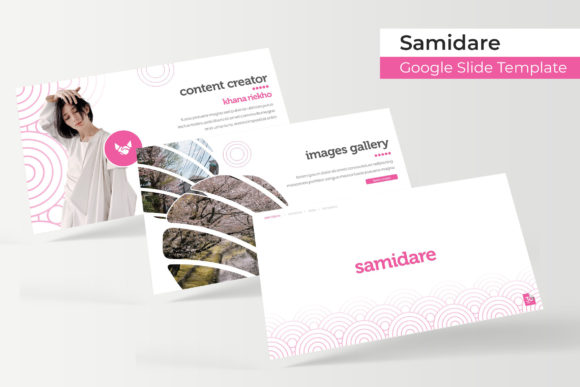
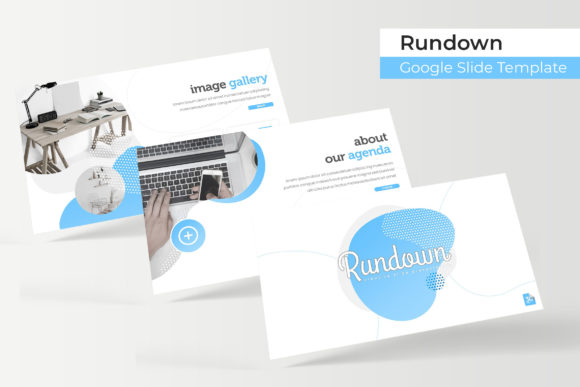
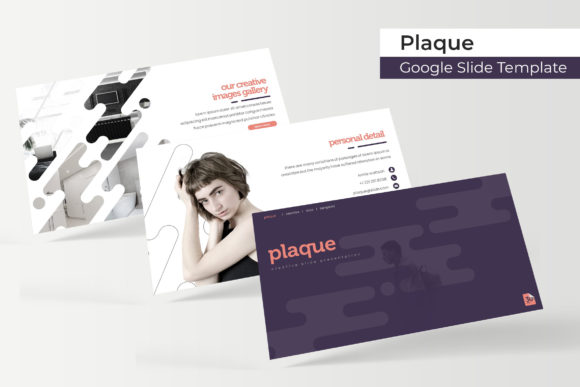
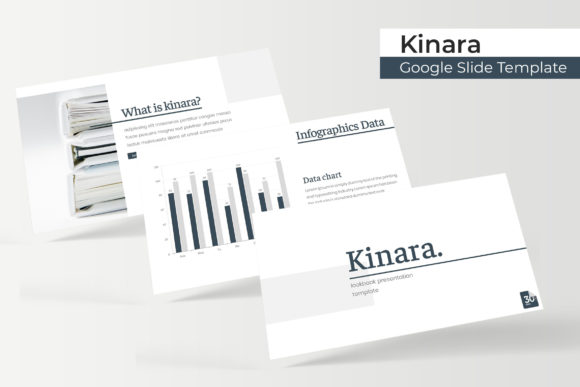
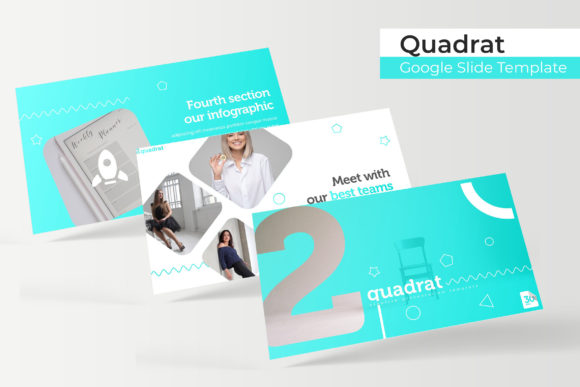
At its core, Quadrat isn't just a single set of slides; it's a versatile toolkit built for professionals who need both variety and consistency. With over 150 total slides distributed across five premade color themes, you get 30 meticulously designed slides for each color variation. This structure is particularly useful if you're managing multiple brands or clients. Instead of reinventing the wheel for every project, you can select a color palette that aligns with a specific brand identity and have a full suite of layouts ready to go. The five distinct color schemes ensure that whether you're aiming for something bold and energetic or calm and corporate, there's a visual starting point that feels intentional rather than generic.
Beyond Basic Layouts: What Makes These Slides Stand Out
One of the standout features of this template collection is the inclusion of handcrafted infographics. We've all seen those clip-art style charts that look like they were pulled from a 1998 software package. Quadrat takes a different approach, offering custom-designed infographic elements that feel modern and professional. These aren't just decorative; they're functional tools for visualizing data, processes, and timelines in a way that's immediately understandable. When you're explaining a complex workflow or showcasing market research, a well-designed infographic can bridge the gap between confusion and clarity far more effectively than a wall of text.
The attention to detail extends to practical functionality as well. Every graphic element within the template is resizable and editable, built upon a master slide foundation. This means you're not locked into rigid layouts. Need to move a picture placeholder or adjust the size of a chart? You can do so without breaking the slide's design integrity. The drag-and-drop picture placeholder feature is a particular time-saver, especially for those who aren't deep experts in presentation software. Instead of fiddling with cropping and positioning, you simply drag your image into the designated area, and it fits perfectly. For anyone who's spent hours trying to align images manually, this kind of thoughtful engineering is a welcome relief.
Pixel-perfect illustrations further elevate the professional feel. In a world where audiences are increasingly visually literate, the difference between a good presentation and a great one often comes down to the quality of its graphical assets. The illustrations in Quadrat are crisp and clean, ensuring they look sharp whether you're presenting on a small laptop screen or a large conference room projector. This level of polish contributes to what designers call "visual credibility"—it subtly signals to your audience that you care about quality and detail in your work.
Practical Applications for Real-World Projects
So, how might you actually use a template system like this? The applications are broader than you might initially think. For small business owners and entrepreneurs, it's an invaluable asset for creating consistent brand presentations. Imagine you're a consultant meeting with potential clients. Using the same color variation across all your pitches reinforces your brand identity and makes your materials instantly recognizable. It's a simple form of visual branding that doesn't require hiring a designer for every single slide deck.
Content creators and marketers will find the template especially useful for social media graphics and digital products. The widescreen format is optimized for modern displays, and the variety of slide layouts—from section breaks to gallery and portfolio slides—makes it easy to create engaging content for platforms like LinkedIn or Instagram. You could use the portfolio slides to showcase client work, the infographic slides to break down a blog post into shareable visual snippets, or the section break slides to create natural pauses in a webinar or online course. The flexibility means you're not constrained to a single use case.
Educators and trainers can leverage the structured layouts to build more engaging lesson plans or workshop materials. The clear hierarchy of information—supported by thoughtful typography and spacing—helps maintain audience focus. Instead of presenting a chaotic mix of bullet points and images, you can guide your audience through a narrative using the pre-designed flow of the slides. This is particularly helpful for complex topics where logical progression is key to understanding.
Getting the Most Out of Your Template Investment
When you download the Quadrat package, you're getting five PPTX files (one for each color theme) along with a helpful Readme file. A practical tip: always start by reviewing the Readme. It often contains important information about font usage and licensing. The template uses a free font, and the download link is included, which is a considerate touch that saves you from scrambling to find the right typeface later. Ensuring you have the correct font installed before you start editing will prevent any formatting surprises down the line.
It's also worth noting that the preview images and photographs used in the template showcase are not included in the download. They're there for illustration purposes, to show you what's possible. This is standard practice for design templates, but it's a good reminder to source your own high-quality images that align with your brand or topic. Using your own visuals not only avoids any licensing issues but also makes the presentation feel authentically yours rather than like a template someone else could have used.
For those concerned about commercial use, the template is designed for both personal and commercial projects, but it's always wise to double-check the specific license terms included with your purchase. Whether you're creating a presentation for a client, a marketing campaign, or an internal business report, understanding the usage rights ensures you can use the assets with confidence. The ability to resize and edit graphics without limitations means you can truly make the template your own, adapting it to fit the unique needs of each project you undertake.
Ultimately, the value of a tool like the Quadrat Google Slide Template lies in its ability to streamline your workflow while elevating the quality of your output. It's not about replacing creativity; it's about providing a solid foundation so you can focus on your message. In a landscape where visual communication is paramount, having a reliable, professional, and adaptable set of slides at your fingertips can make all the difference in how your ideas are received.